
Everything MaTalk Class does
Start in 5 minutes
What MaTalk Class is
You ask the class a question. Every student answers by tapping a picture card on their own device (their AAC device, a tablet or a laptop), and you see every answer arrive, live.
It's built for classrooms with students who use AAC, so everyone, speaking or not, answers at the same moment.
Signing in
Everyone signs in with a Google account. The first screen asks who you are.
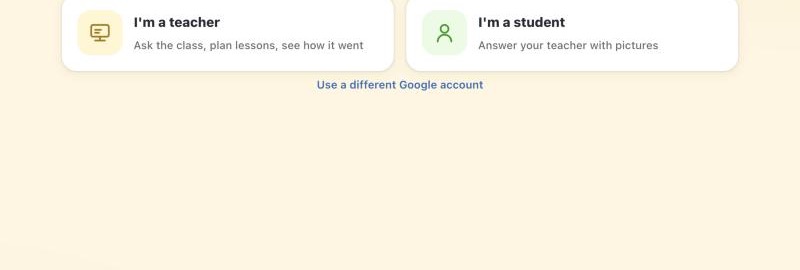
- Teachers choose I'm a teacher. MaTalk Class is invitation-only for now: your email or your school's domain needs to be approved.
- Students choose I'm a student and sign in with the email their teacher invited.
- A different Google account? Tap Use a different Google account under the two cards. It signs the browser out of Google, so you can pick any email.
- Sign out is at the bottom of the home screen.
Your home screen
Two parts: Teach (your classes) and Prepare (everything you've made).
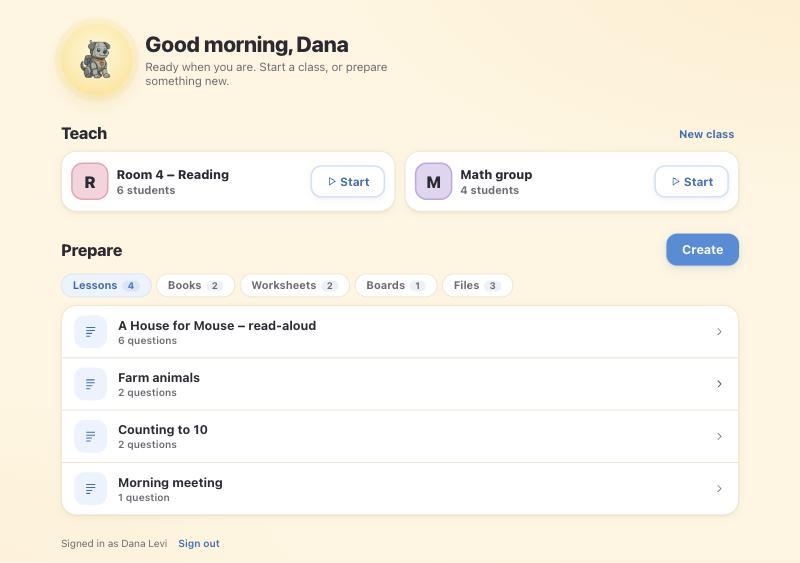
Teach
- Each class has a ▷ Start button. Tap it to open the class, ready to teach.
- New class (top right) makes another class.
Prepare
- The tabs Lessons Books Worksheets Boards Files each show one kind of thing.
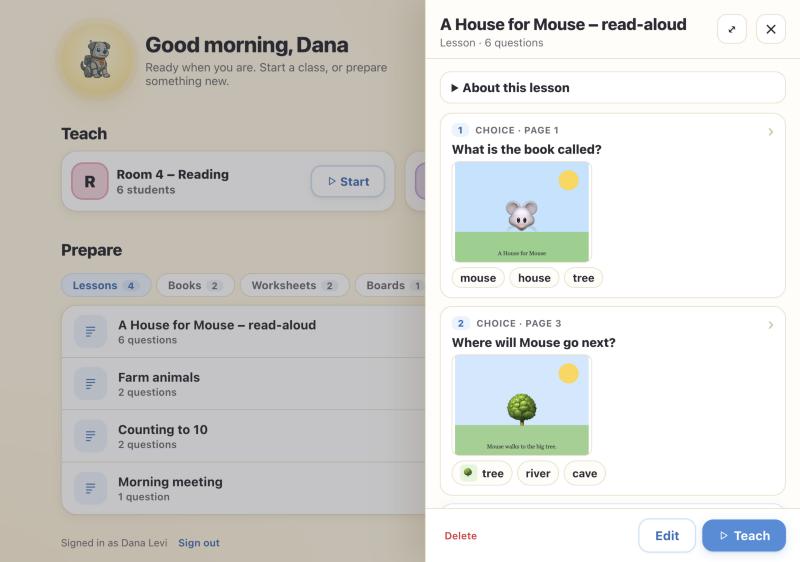
- Tap anything for a quick look. It opens in a panel on the side, so you never lose your place. Tap a question to see it in full, or ⤢ to widen the panel.
- From a quick look you can Edit it or Teach it straight away.
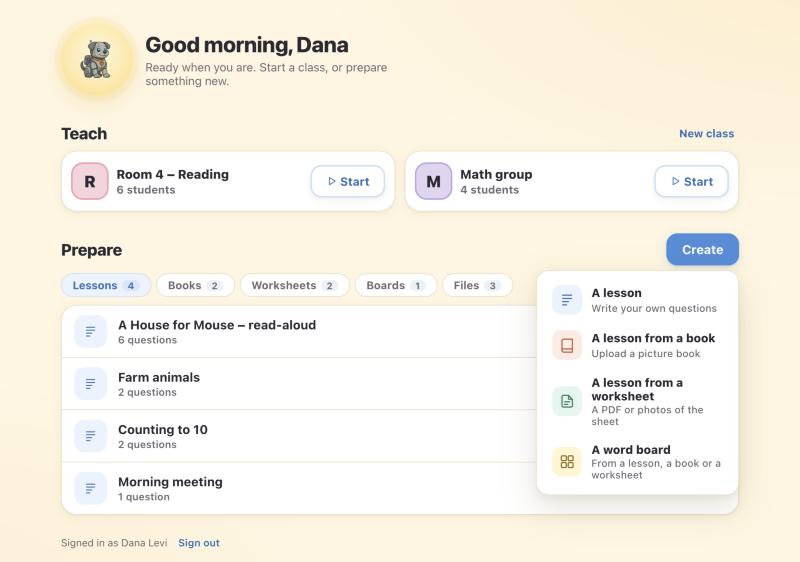
- Each tab has its own button. On Lessons, Create a lesson: write your own, or start from a book, slides or a worksheet and MaTalk suggests the questions. A book, slides or worksheet you upload is kept: From a book (or slides, or a worksheet) offers the ones you have before a new upload, and a lesson’s quick look says what it was made from, to make another lesson or a word board from it. On Boards, Make a board: from a lesson, a book, slides or a worksheet, or something else described in your own words (MaTalk picks the words). A board's quick look says which lessons it's for: Change to pick one or more; each brings the board up when it starts in class. A lesson's quick look opens its board, or makes one.
- Give a lesson a topic (your own: "Math", "Week 5: robots") with the chip on its row; the sidebar then finds lessons by topic.
Classes & students
A class is a group of students you teach together. Lessons belong to you, so any lesson works with any class.
Make a class
- On the home screen, tap New class.
- Give it a name, like “Room 4 – Reading”, and save.
Invite students
- Open the class and go to the Students tab.
- Type the students' Google emails, one per line (or separated by commas), and tap Send invites.
- Share the class page link (it's at the bottom of the Students tab, with a Copy button). Students open it on their device and sign in with the invited email. Your class appears for them automatically.
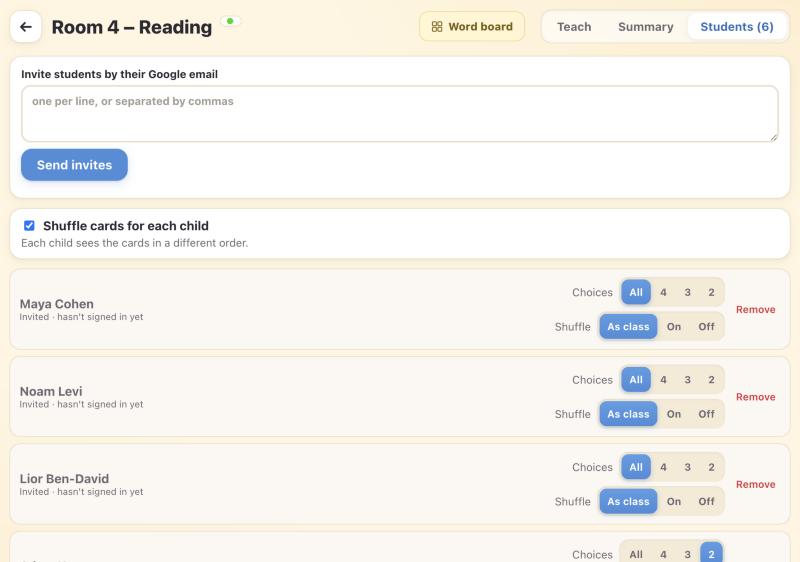
Settings for each student
- Choices sets how many cards a student sees (All, 4, 3 or 2). Fewer cards come out bigger, and a right answer is always kept.
- Shuffle cards for each student gives every student the cards in a different order, which catches “always taps the first card”. You can turn it on or off for one student too.
- Switch access, for a student who uses a switch (or Tab and Enter): while there's a question, Tab only moves through the question and its cards, round and round, not the whole page. The first card is ready as soon as a question comes up, the card in focus has a big yellow ring, and each card is said as it's reached, so the student hears it before choosing. Select (Enter) picks it.
- Contrast (for low vision): Dark is light words and bold yellow outlines on black, easier for a student who's sensitive to glare; Light is black words and bold outlines on white. A solid background, no decoration, bigger words; pictures keep their colours. Only that student's screen changes. (Following Perkins School for the Blind: no one scheme suits everyone, so try both.)
- 🔊 under each card puts a speaker under every answer card on that student's device: tapping it says the card out loud without choosing it, so the student can listen to the options first.
- Read questions aloud reads each question on that student's device when it comes up. Every student can also tap 🔊 to hear it again. Exit tickets are always read aloud.
- Remove takes a student out of the class.
Ask a question, live
Type or say a question, tap Ask, and every student gets picture cards to answer with.
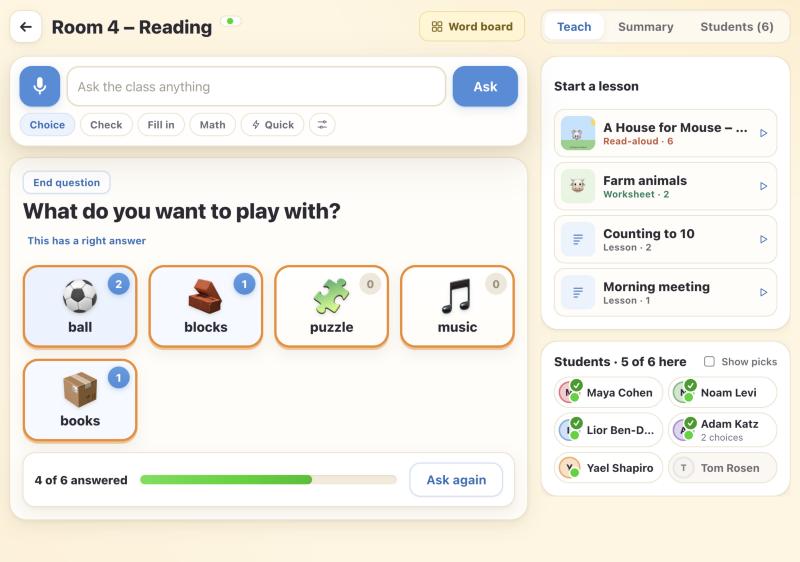
Asking
- Type the question in the ask bar, or tap the 🎤 and say it.
- Pick what kind of question it is (below the bar):
ChoiceNo wrong answers: “What do you want to play with?”CheckHas a right answer: “What did the caterpillar eat?”Fill inA sentence with a gap: type ___ for the missing word.MathAny math up to 5th grade, worked out for you (see Math).
- Tap Ask. MaTalk makes the answer cards and sends them to every student.
While students answer
- Each card shows how many students picked it, and a bar shows how many have answered.
- On the right, each student's face gets a green ✓ when they've answered. Tick Show picks to see what each student chose. Keep it off on a smartboard.
- Tap a card to say it out loud. Tap the ✓ on a card to mark it as the right answer.
- Show answer lights up the right card on every student's screen. Nobody is ever marked wrong.
- Ask again repeats the question with the same cards. End question clears it.
- On a Choice question, This has a right answer lets you mark one after all.
Math
Pick Math and type any question up to 5th grade. MaTalk works out the answer itself (never the AI), and the wrong cards are the mistakes students really make, so a wrong pick tells you how they went wrong.
You can also ask in words: “Is 1 + 3 bigger than 5?”, “What is six times seven?”, “What's bigger, three or five?” (shown as 3 > 5 or 3 < 5), even a word problem like “Sam has 3 apples and gets 4 more. How many?”. Students see your words with the math under them.
- Tap ∑ beside the box for a math keypad: × ÷, ? for the missing number, a fraction key, < > and brackets. Typing works too: x or * for times, / for divide or a fraction.
- Fractions show stacked, top over bottom, and the missing number is an empty box. Questions are read aloud in words: “3 plus what equals 7”.
- Show a picture to help (under ⚙, or on the question in a lesson) adds a number line for adding and taking away, rows of dots for times, equal groups for sharing, or fraction bars.
- Wrong cards include: one more or one less, the wrong operation, working left to right instead of × first, adding instead of undoing for a missing number, adding the tops and bottoms of fractions, and lining decimals up wrong.
- See how they worked it out. With Show picks on (or after Show answer), a line under the answers explains a wrong card only when the mistake is certain, in the question's own numbers: “20 · did 2 + 3 first, then × 4 · Ava, Ben”. A number a slip, a guess or copying could also give gets no explanation. The Summary lists each kind of mistake with the students who made it, and a student who makes the same one twice shows under What to know.
Plan a lesson
A lesson is your questions, in order, ready the evening before. Teach it to any class, any day.
Four ways to start
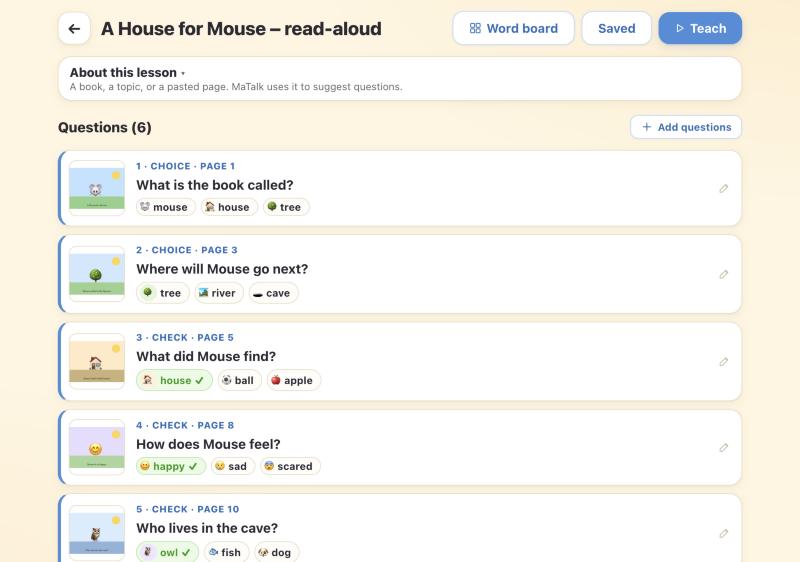
About this lesson
Tell MaTalk what the lesson is about: a book, a topic, or a pasted page. You can also read the text from a PDF, or from a Google Doc or Slides deck with From Google Drive. MaTalk uses it to suggest better questions and cards.
Change a question
- Tap a question. It opens in the side panel.
- Edit the words, pick the kind, add a picture (from your image bank), and set the cards: tap Suggest, or type your own and tap Add.
- For Check questions, tap the right card to mark it ✓.
- Use ↑ ↓ to reorder, ‹ › to step through questions, and Done when finished.
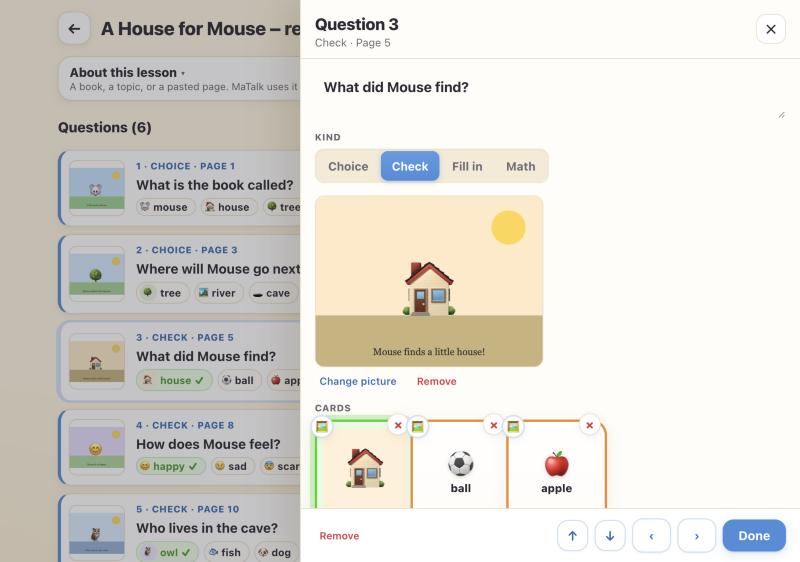
When it's ready: Save, then ▷ Teach to start it in a class. Word board makes a board for the lesson (see Word boards).
Teach a lesson in class
Start a lesson and MaTalk keeps the next question ready. Nothing reaches the students until you tap Ask.
- Open your class. On the right, under Start a lesson, tap the lesson. (Or tap Teach on the lesson itself.)
- The stage shows Up next, with its book page if it has one. Hold up the book, then tap Ask the class.
- When everyone has answered, tap Next question →.
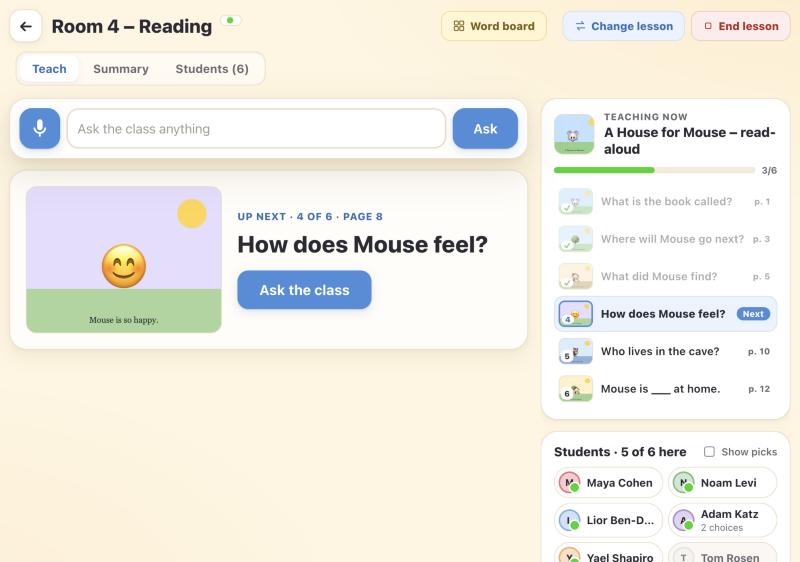
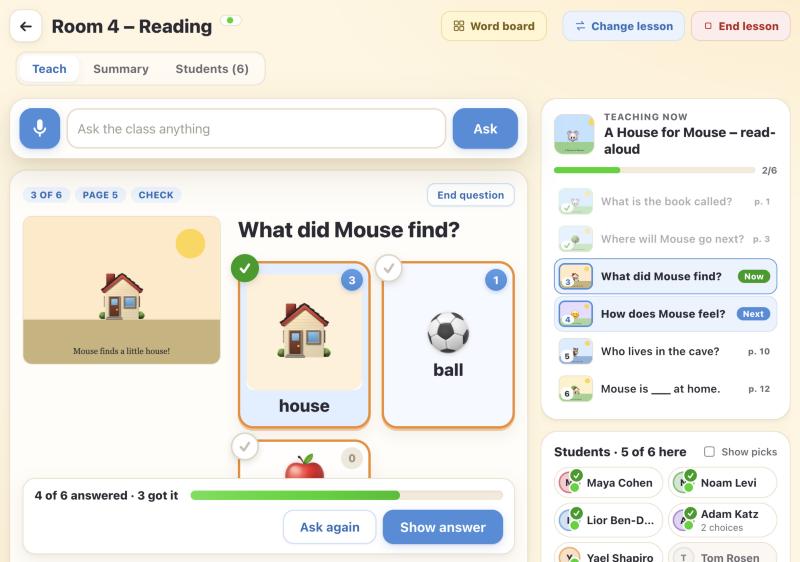
- The lesson list on the right shows every question: ✓ asked, Now, and Next. Tap any question to jump to it.
- ⇄ Change lesson and ■ End lesson are always on the top line.
- You can still ask your own question any time, in the ask bar.
- If the lesson has a word board, it comes up for everyone when the lesson starts.
Hinge checks
A checkpoint in the lesson: one quick question you ask where the lesson turns, right after an idea is taught and before the lesson builds on it. How the class answers tells you whether to move on or go back.
- In a lesson, tap + Add questions → A hinge question.
- What should students learn? MaTalk reads the lesson and suggests a few goals, like “Order the stages of the life cycle”. Pick one, or write your own.
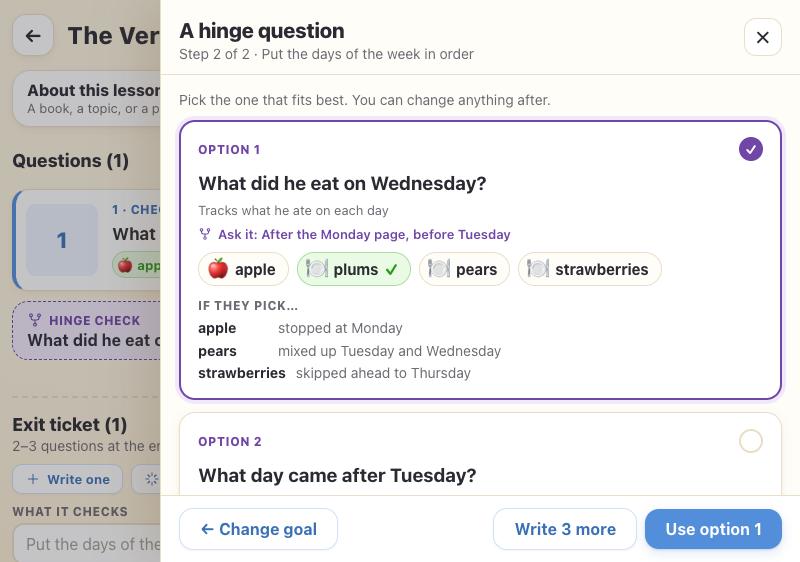
- Tap Write 3 questions. Each option shows what it checks, when to ask it (“After page 18, before the butterfly part”), its cards, and what a student who picks each wrong card was probably thinking, to help you choose.
- Tap the one you like, then Use option 1, 2 or 3. It goes into the lesson where MaTalk suggested; move it with ↑ ↓. Check the ✓ card, then save.
In the lesson
A hinge check isn't numbered like the other questions. It shows as a dashed purple Hinge check row between them, in the lesson and in the lesson list on the class screen. When it comes up, the stage says Up next · Hinge check with what it checks and when to ask it. Ask it like any other question, and see how the answers spread across the cards.
Exit tickets
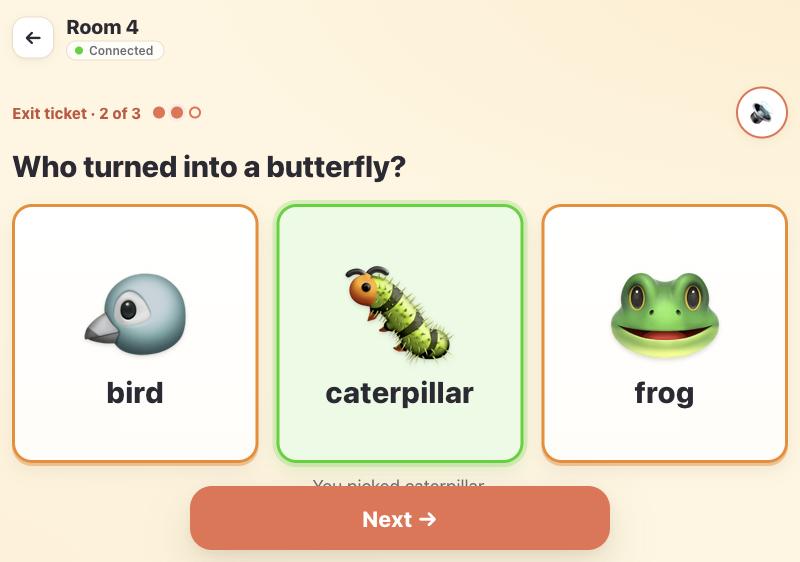
A few questions at the end of a lesson that check one thing students should have learned. Each student answers on their own, with every question read aloud, and MaTalk marks every answer for you.
Add one to a lesson
- In the lesson editor, scroll to Exit ticket, under the questions.
- Tap Suggest 3 with MaTalk. MaTalk suggests what students should have learned (or write your own), then writes three questions that check it from different angles, each with 3 picture cards. Or tap + Write one. Up to 5.
- Every exit ticket question has a right answer (Check, Fill in or Math), so check the ✓ cards. Then save.
Already have a paper exit ticket?
Tap Scan a ticket and choose a photo or a PDF of it, like one you bought on TPT. MaTalk reads its questions and picture choices and turns them into picture cards, using the ticket's own pictures. It reads one copy when a page has several, fills in What it checks, and leaves out name lines, self-rating scales and writing. It tells you which ones need their ✓ checked.
Run it in class
- While the lesson runs, tap ✓ Exit ticket under the lesson's questions on the right.
- Each student gets the first question, read aloud on their device (🔊 hears it again). They tap a card, which says the word, and then tap Next →, so a slip of the finger can be changed. After the last one they see All done! ⭐.
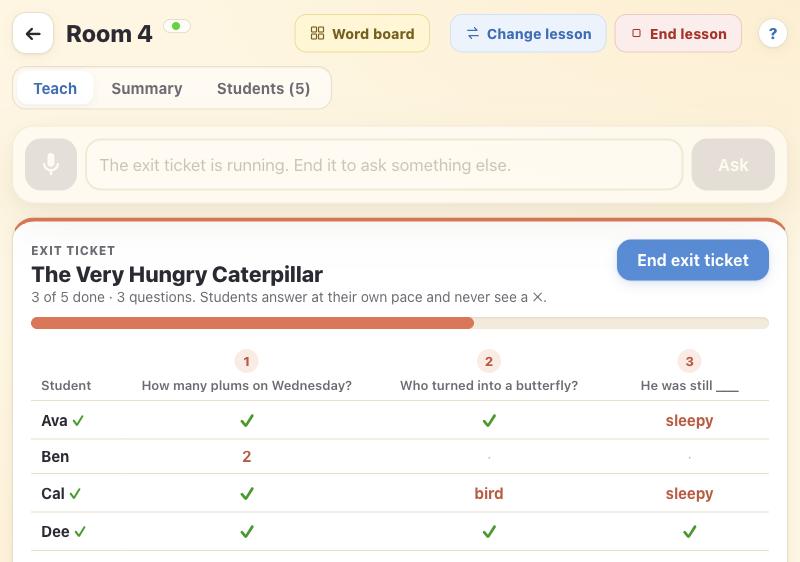
- You see every student against every question: ✓ for right, the card they picked when it's wrong, and a dot while they're still working.
- When everyone's done, tap End exit ticket. You get a quick summary, and the answers go into the Summary.
Books & read-alouds
Upload a picture book or a chapter, and MaTalk reads every page, then plans a read-aloud: where to stop, what to ask, and which words to teach.
- Create a lesson → From a book.
- Choose Picture book or Chapter or text (mostly words, like a chapter book: much faster), then a PDF, photos of the pages, or a Google Doc or Slides deck from From Google Drive. Photos are cropped to the page, straightened and cleaned up, and put in order by their printed page numbers, then shown to you to check: pick a look (Clean up, Black & white for text pages, or As photographed), drag them into order, turn one, move its corners, split a photo of two open pages, or take more with 📷 Take photos.
- MaTalk reads in the background: you can keep working. The book shows “Reading… 4 of 9 pages” under Books, and a note in the corner says when it's ready.
- Check the plan, then tap Make a lesson.
Three tabs
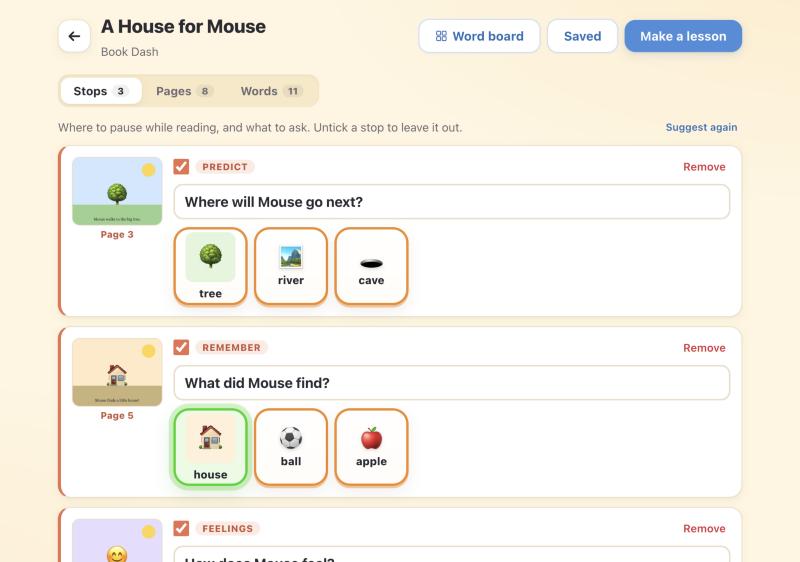
- Stops: each stopping point with its page. Edit the question, tap a card to mark it right, Ask AI for more questions to add some, or Start over for a new plan.
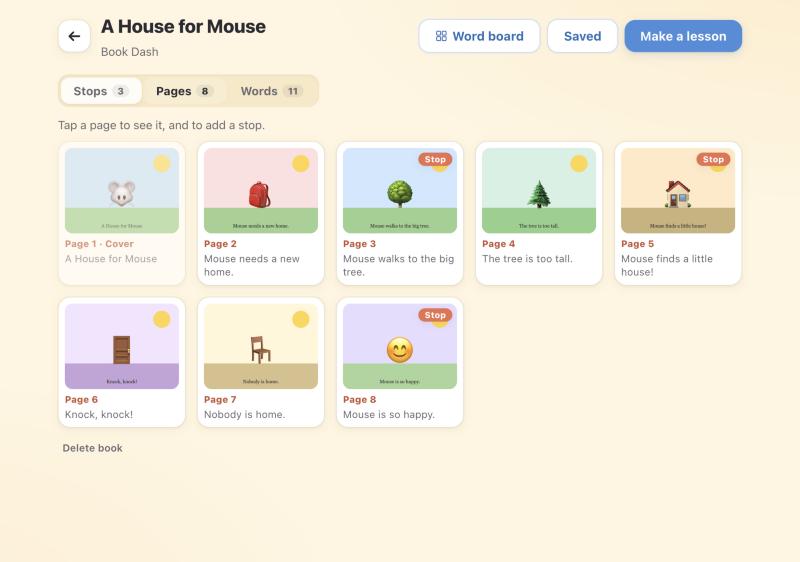
- Pages: the whole book. Tap a page to see it large, with its words, and to add a stop on that page.
- Words: core words to model while reading, and words from the book. Add or remove any.
Slide decks
Turn a slide deck into a lesson: MaTalk reads every slide and suggests a picture-card question for each one, asked while that slide is up.
- Create a lesson → From slides.
- Tap Google Slides or PowerPoint from Drive, or Choose a PDF of the slides.
- MaTalk reads in the background: you can keep working. The deck shows “Reading… 4 of 12 slides” under Slide decks.
- Check the questions, untick any you don't want, then tap Make a lesson.
Three tabs
- Questions: one for each slide that teaches something, with its slide beside it. Edit the words, tap a card to mark it right, Ask AI for more questions to add some, or Start over.
- Slides: the whole deck. Tap a slide to see it large, with its words, and to add a question of your own.
- Words: core words to model while teaching, and words from the slides.
Presenting the deck in class
- Tap Presenter view at the top: the class's screen opens in its own window. Drag it to the smartboard or projector (or open the same link there) and tap Full screen. It shows only what the class should see; your screen keeps the controls.
- Start the lesson, then tap Present the slides under the lesson. The presenter view shows the slide big.
- Choose what students' devices show while a slide is up: the slide, or “Look at the board” so their eyes go to the front.
- Your students see the slide big on their screens. Go through the deck with Next › and ‹ Back, the arrow keys, or a presenter's clicker.
- A slide with a planned question shows it under the slide on your screen only: the class sees it once you tap Ask the class, beside the slide, with the cards, on the presenter view and on every device. Or type or say any question in the ask bar: it's asked about the slide on screen, and the class sees the slide with the cards.
- Tap Back to the slides to end the question and return to the slide it was asked from. Stop presenting (at the top) clears whatever the class is shown -- a question, a word board, a slide -- on every screen.
Worksheets
Turn any worksheet into picture-card questions, including its own pictures.
- Create a lesson → From a worksheet, then choose a PDF, a photo of each page (cropped, straightened and cleaned up for you to check), or a Google Doc or Slides deck from From Google Drive.
- MaTalk turns every item into a question and cuts the sheet's pictures out for the cards.
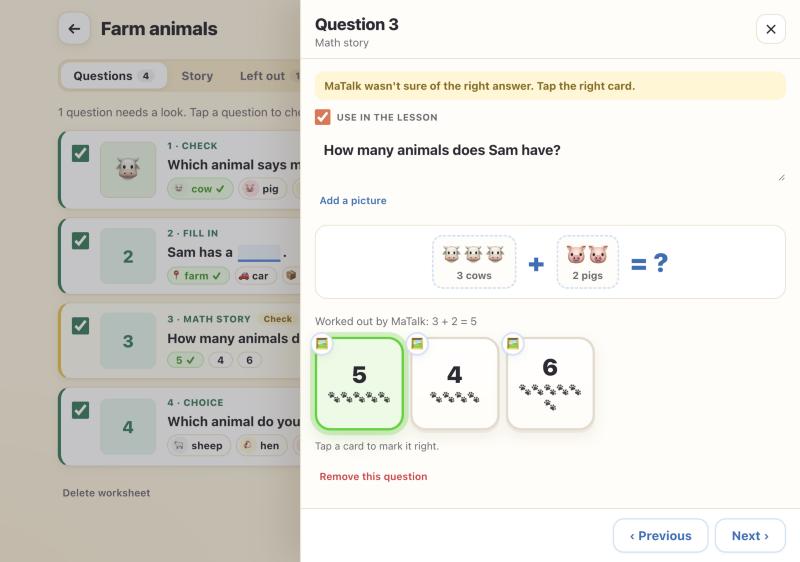
- Check anything marked Check (MaTalk wasn't sure of the answer), then Use in a lesson.
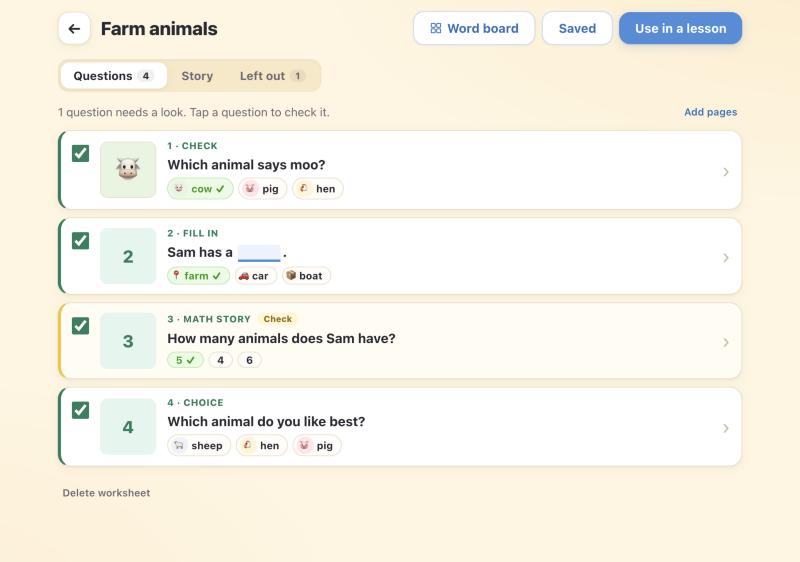
- Tap a question to fix it: words, right card, picture. ✂ adjusts a picture cut from the sheet (right after uploading, while the pages are open), and 🖼 swaps it for one from your image bank.
- Word problems are drawn as things to count, and number cards show that many.
- Story tab: the sheet's story, and a storyboard of it if you make one.
- Left out tab: parts MaTalk didn't turn into questions (like colouring).
- Add pages reads more pages into the same worksheet.
Word boards
A communication board for a lesson, book or worksheet. Print it for the table, show it on the smartboard, and students can tap it on their devices.
Make one
- Boards → Create, or tap Word board on any lesson, book or worksheet.
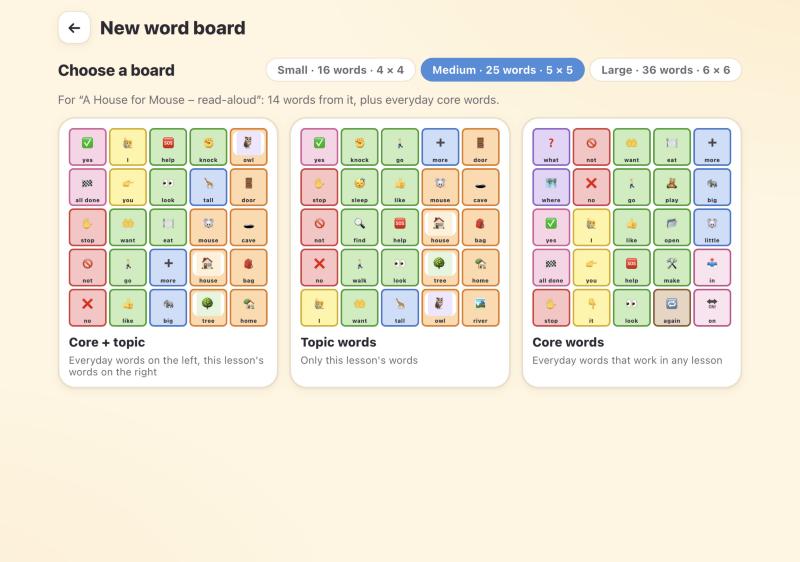
- Pick a size: Small (4 × 4), Medium (5 × 5) or Large (6 × 6).
- Pick a layout: Core + topic (everyday words on the left, the lesson's words on the right), Topic words, or Core words.
Change it
- Tap a word to change it, its colour, or its picture.
- Drag a word onto another square to swap them, or use Move to another square… and tap where it goes.
- ✕ on a word removes it. + on an empty square adds one.
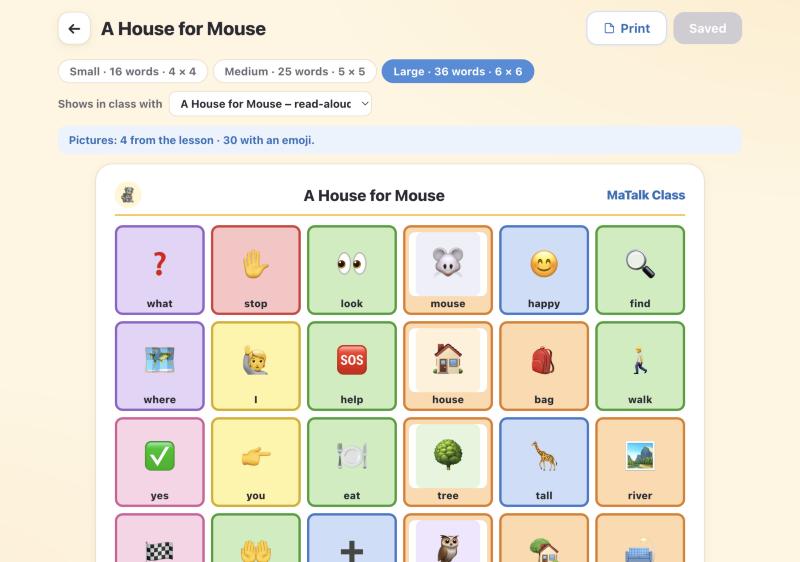
- Pictures come from the lesson first, then your image bank, then the symbol library when enabled, otherwise the word shows an emoji. Choose From the symbol library to search meanings and pick other versions. The line above the board says where each came from.
- Shows in class with links the board to a lesson.
The colours
Boards use the modified Fitzgerald key, the colours students know from AAC boards:
| Colour | Words |
|---|---|
| Purple | Questions (what, where) |
| Pink | Social words (yes, please, all done) and position words (in, on) |
| Red | No, not, stop |
| Yellow | People (I, you) |
| Green | Actions (want, go, eat) |
| Blue | Describing words (big, happy) |
| Brown | How and when (again, now) |
| Orange | Things and places (apple, house) |
| White | Little words (and, the) |
Print it
Tap Print. The board fills a whole page, with the MaTalk Class header and the colour key. Choose Save as PDF in the print window for a PDF.
Use it in class
- Tap Word board on the class's top line and choose a board. It opens big on your screen; what the class sees doesn't change. Tap a word to say it while you model.
- Students have it behind a Words button (and on their screen while they wait). Tapping a word says it out loud.
- Present to class puts the board on the presenter view and every student's screen, over the question or slide. Stop presenting the board, asking a question or going to a slide brings the lesson back.
- Remove board takes it away everywhere. Stop presenting at the top clears everything the class is shown.
Download and import
Open a lesson or word board and choose Download next to Share. For AAC boards, open the board’s options menu. Choose a MaTalk file to use in another library, or Save PDF to print the content as shown, including AAC folders. Lesson downloads include questions, slides, exit tickets and linked word boards.
In Prepare, select Lessons, Boards or AAC and choose Add → Import. Choose your .matalk file and edit its name before saving. If you already have an item with that name, choose Replace, Change name to keep both, or Cancel. Your imported copy includes its pictures. Choose the MaTalk file, rather than a PDF, when importing.
Board files may require picture rights confirmation or replacement pictures before downloading. You can still save a PDF. Lesson files are personal portable copies.
Share a copy with another teacher
Open a lesson or word board preview and choose Share. For an AAC board, open the board and choose Share. Enter one or more teacher emails and an optional note, then Send. A lesson's word boards come with it.
The other teacher gets their own copy. Changes either of you make later stay in your own library. Sharing does not grant teaching access to an unapproved account.
In Shared with you, switch between Received and Sent. Preview a received item, choose Add to my library, or No thanks. In Sent, Take back withdraws a copy while it is waiting. Copies already added belong to the receiver.
AAC boards
A light AAC, like the MaTalk AI app: a sentence bar and a board of word tiles. Model on it beside the lesson, so the class sees how to say it while they learn, or open it on its own, full screen.
Make one
- AAC → New AAC board.
- Choose how big (from 2 × 2 to 8 × 8), then Build with AI, or start from the core words, one of your word boards, or an empty grid.
Change it
Tap ✎ on the right of the sentence bar. Everything saves as you go, and ↶ Undo takes back any change.
- Grid size: − and + for rows and columns (up to 10 each), or pick a size. Words keep their places when they fit.
- Add words searches every word you have a picture for: your image bank, your lessons' cards, your word boards and the core words. A word you don't have yet can be added anyway; give it a picture after.
- Tap a tile to change its word, colour, picture or emoji, or move it with the arrows. Drag a tile onto another square to swap them.
- 🙈 hides a tile from the class: its square stays empty, so no other word moves. ✕ takes it off the board.
- Folders: New folder (or, on an empty square, A new folder here instead) makes a folder tile that opens a page of its own. 📂 opens it to fill it; 🏠 and ‹ come back. To move a word into a folder, tap it and choose the folder under Move to another page.
- Import brings in the core words, a lesson's words (its cards and pictures), a word board or another AAC board: replace this board, add its words to the empty squares, or put them in a new folder.
- Build with AI: choose a lesson, book or worksheet, or describe the topic, pick the size, and tick folders to have the topic words sorted into them. MaTalk builds the whole board, using pictures you already have. Undo brings the old one back.
- Organize with AI: say what you'd like (“put the food words in a folder”, “make it 4 × 4 for snack time”, “hide everything except the weather words”) and MaTalk rearranges it. Undo brings yours back.
Model with it in class
- Tap AAC on the class's top line and choose a board. It opens beside the lesson on your screen only.
- To the left / To the right moves it to the other side, everywhere.
- Show to class puts the same split on the presenter view and every student's device. Each word you tap lights up on their boards, and your sentence builds on the smartboard.
- Opening a folder while it's shown takes the smartboard and the students' boards into it too.
- Students can tap the board on their own device: it says the word there, and builds their own sentence. Students' words above your board shows what each one is saying (🔊 when they pressed ▶). Only you see it; untick Show when your own screen is on the smartboard.
- Stop showing takes it off the class's screens; it stays open on yours. ✕ closes it.
On its own
Open a board from the AAC tab and tap Full screen to use it on the smartboard by itself.
What students see
Big pictures, one question at a time, and nothing they can get wrong in front of the class.
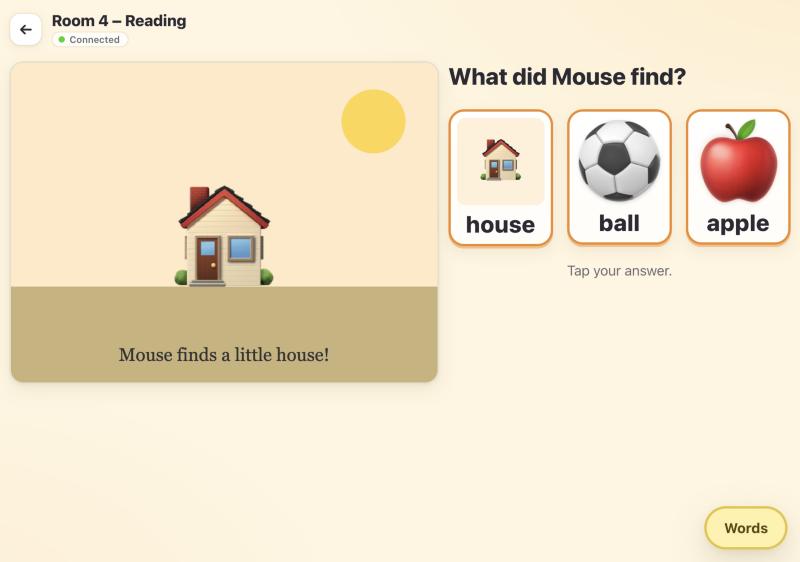
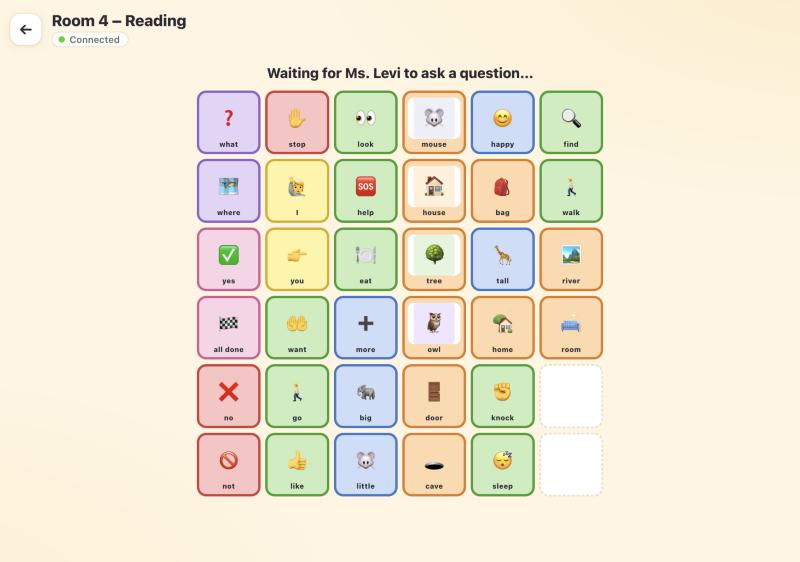
- Tap a card to answer. The device says the word out loud. A student can change their answer until you show it.
- Tap the book page to see it full screen.
- When you tap Show answer, the right card glows and the student sees “That's right! ⭐” or which card was right. There's never a red cross.
- With no question, students see “Waiting for your teacher…” or the class word board.
The Summary
What your class understood today, and what to teach again, without adding anything up yourself.
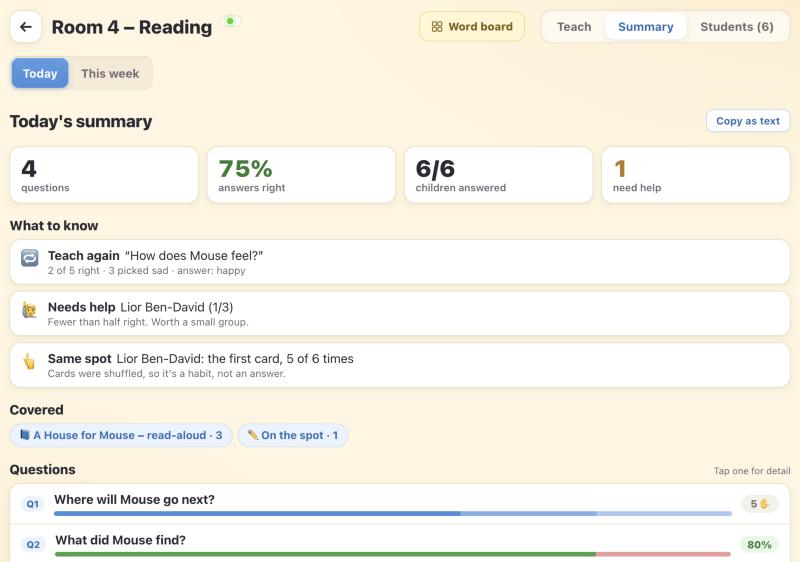
- Choose Today, This week or Last lesson.
- What to know: questions to teach again, answers that got mixed up, students who need help, and students who keep tapping the same spot.
- Questions: every question with how the answers spread. Tap one for detail.
- A table shows each student's answer to every question.
- Copy as text gives you a written summary to paste anywhere.
Files & image bank
Every picture and upload is kept, so you can reuse it anywhere.
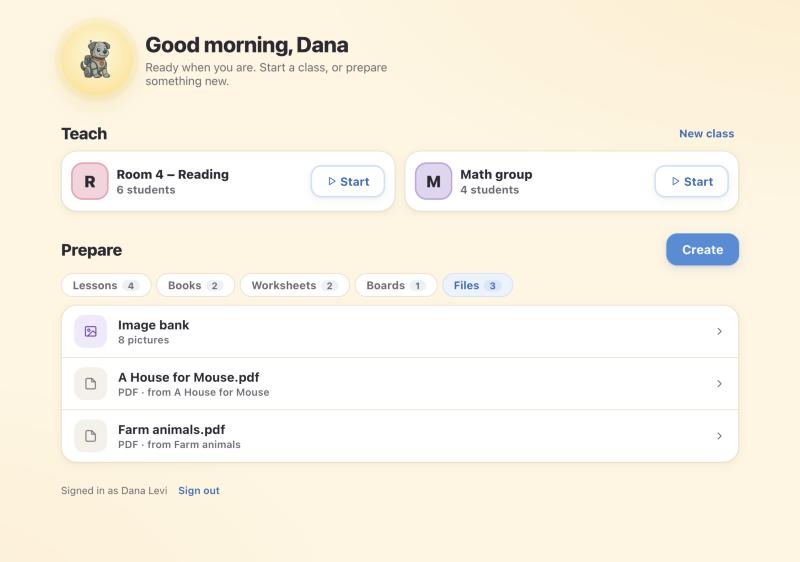
- Image bank: pictures cut from your worksheets and books, and any you upload. Use them on any card, question or board.
- Original files (tap to show them): the original PDFs and photos of your worksheets and books. Open or download them any time.
Tips for smooth lessons
- Plan the night before. Make the lesson from the book or worksheet, check the ✓ answers, and you're ready.
- On the smartboard, keep Show picks off, so names aren't shown next to answers.
- Mix in Quick questions (Yes / No) to keep everyone answering all lesson.
- Use Choices for students who do better with 2 or 3 big cards.
- Turn on Shuffle to see who's really choosing and who's tapping the same spot.
- Print the word board and put it on the table too, for students without a device.
- Check the Summary at the end of the day. “Teach again” tells you what tomorrow needs.
Questions & answers
I can't sign in as a teacher
MaTalk Class is invitation-only for now. If you see “isn't approved to teach yet”, ask us to add your email or your school's domain. Check you picked the right Google account: tap “Use a different Google account” to switch.
A student signed in but can't see the class
They need to sign in with exactly the email you invited, and choose “I'm a student”. Check the spelling in your Students tab. If they see “hasn't been invited to a class yet”, the email doesn't match.
I signed in with the wrong Google account
Sign out, then on the sign-in screen tap “Use a different Google account”. It signs the browser out of Google, so you can choose any email.
How do I see what the students see?
Invite your own email to your class, then sign in with “I'm a student” (on another device or browser, so your teacher screen stays open). You'll count as a student in that class's numbers, so remove yourself when you're done.
Did my question reach the students?
Yes, once it shows on your stage with its cards. The green dot beside the class name means you're connected; each student's face has a green dot when they're online, and a ✓ when they've answered.
Why do some students see fewer cards?
Their Choices setting in the Students tab. Fewer cards come out bigger, and a right answer is always kept.
How do I make a PDF of a word board?
Open the board, tap Print, and choose “Save as PDF” as the printer.
There's no sound on a student's device
Check the device isn't on silent and the volume is up. On an iPad, the side switch or Control Center may be muting it.
Where is my work saved?
Everything you make is saved to your account: lessons, books, worksheets, boards, pictures and files. Open it from Prepare on any computer after signing in.
What can MaTalk see in my Google Drive?
Only the file you pick. When you tap From Google Drive, Google asks once to let MaTalk open files you choose; it can't see the rest of your Drive. Docs, Slides, Word and PowerPoint files arrive as a PDF and are read the same way as one you upload. For Word and PowerPoint, MaTalk briefly makes a Google copy to turn it into a PDF, then deletes the copy.
What about students' privacy?
Students sign in with the school's Google accounts. Only you see names next to answers; the lasting record of answers doesn't store the students' emails. Removing a student from a class also unlinks their past answers.